

Surprisingly, the average smartphone user in the United States keeps nearly 30 apps installed. They actively use fewer than half of them. This mismatch quickly fills limited space and slows devices down.
This short guide shares practical, step-by-step tips to free up smartphone storage. It helps improve device performance and extend your phone’s usable life. You’ll see how freeing storage speeds up the phone, reduces crashes, and makes room for apps, photos, and updates.
Readers will learn to manage phone storage effectively. This includes understanding capacity, analyzing usage, and removing unused apps. You’ll also find tips on using cloud and external storage.
Other methods explained include optimizing media, clearing cache, and keeping regular maintenance habits. These steps make a big difference in phone performance.
This advice suits anyone with limited phone space. It helps owners of older devices, midrange phones with low storage, or people with many photos and videos. When you follow these techniques, you often free several gigabytes of space. You’ll also simplify file organization and delay the need to upgrade your phone.
Before deleting files, back up important data. Use trusted services like Google Drive, iCloud, or OneDrive to save your data safely. Also, review app permissions when uninstalling or clearing data to avoid losing essential information.
Key Takeaways
- Removing unused apps and clearing cache are fast ways to free space.
- Cloud services like Google Drive, iCloud, and OneDrive help store media safely.
- Analyzing storage usage pinpoints what takes the most room.
- Optimizing photos and videos can recover gigabytes without losing quality.
- Regular cleanups and backups prevent sudden storage shortages.
Understand Your Smartphone’s Storage Capacity
The first step in any phone storage plan is to see what the device reports. On Android, go to Settings > Storage or Settings > Device care > Storage on Samsung to view used and available space. You will also see a category breakdown.
On iPhone, open Settings > General > iPhone Storage to see a color-coded bar. Apple also gives recommendations like Offload Unused Apps and Review Large Attachments.
Users should note the difference between internal space and system reserved space. The operating system, caches, and preinstalled apps take non-negotiable storage. Focus on reclaiming areas with user data like apps, photos, videos, and downloads.
Storage reports group items by category: apps, photos, videos, downloads, messages, and cached files. Photos and videos usually take the largest share. Android file managers often show internal and microSD storage separately. iOS reports total used space including the system.
Start by recording current free space to measure progress. Identify problem areas. If the System section is large, accept that it can’t be reduced. Look into Downloads, large apps, and message attachments for quick wins.
Check Available Storage
Open device settings and find the storage screen. Note the free space number and the category breakdown. On Android, tap categories to see which apps or files use the most room.
On iPhone, review Apple’s suggestions to reclaim space fast.
Know What Takes Up Space
Audit usual culprits: high-resolution photos, long videos, app caches, and media saved from messaging apps. Use built-in previews to find the biggest files. Sort items by size for detailed organization.
Focus on removing duplicates and large downloads first. To free up storage, delete old downloads and clear app caches. Move large media files to cloud or external storage.
Track free space after each change to confirm improvement.
Analyze Your Storage Usage
Before deleting files, it helps to know where your phone’s space is going. A quick analysis shows if videos, apps, or cached data use the most room. This is one of the best ways to manage your phone’s storage.
Understanding your usage sets the stage for smart storage tips that maximize smartphone space. Use this info to make better storage choices.
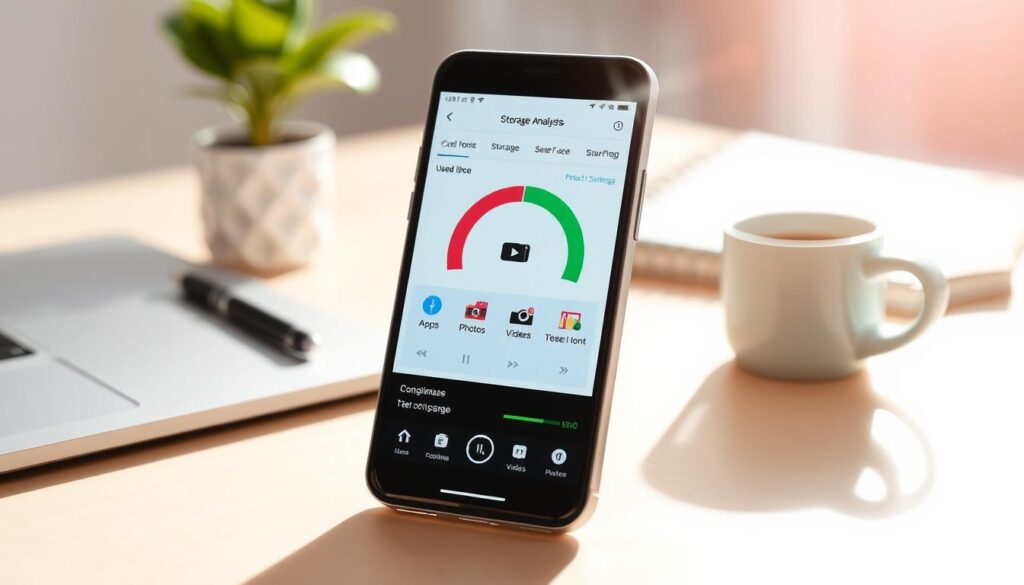
Built-in tools give you a clear starting point. Android users find storage info under Settings > Storage.
Files by Google highlights large files in its Clean tab. On iPhone, the Recommendations screen lists big items and per-app storage pages show which apps use the most data.
Use those reports to prioritize action. Address the largest categories first and follow suggestions like offloading or deleting big files.
Use Built-in Storage Analysis Tools
Open the native storage screen to see categories like apps, images, videos, and system data. Files by Google groups unused apps, large files, and duplicate media for easy viewing.
On iOS, the Offload Unused Apps option frees space while keeping your user data. These summaries help you pick the best next steps to save space long term.
Steps to use Files by Google effectively:
- Launch Files by Google and tap the Clean tab.
- Review suggestions for large files and unused apps.
- Tap to preview then remove items you no longer need.
Third-Party Apps for Storage Management
Third-party tools can fill gaps that built-in tools miss. Good Android options include Files by Google, CCleaner, and SD Maid.
These apps find large files, clean cache, and spot duplicates. On iOS, deeper cleaning is limited due to sandboxing, so rely more on the Files app and Apple’s tips.
Be careful when choosing third-party apps. Pick apps from Google Play or the App Store with trusted developers like Google or Piriform.
Avoid apps that ask for too many permissions or promise unrealistic speed boosts. Always check reviews and update history before installing.
Use a file manager to find large or duplicate files yourself. On Android, open Files by Google, select Large files, preview items, then delete or move them to cloud storage.
This focused approach helps you manage storage while keeping full control over what gets removed.
| Tool | Platform | Primary Use | Notes |
|---|---|---|---|
| Android Storage Settings | Android | Breakdown by category | Built into device; safe and reliable |
| Files by Google | Android | Clean large files, duplicates, unused apps | Strong suggestions; user preview before delete |
| CCleaner | Android | Cache and residual file cleaning | Good for moderate users; check permissions |
| SD Maid | Android | Deep cleaning and file analysis | Power user tool; use with care |
| iOS Storage Recommendations | iOS | Offload apps, review large attachments | Limited third-party cleaners due to sandboxing |
Delete Unused Apps and Games
Clearing unused apps and games quickly frees up space on your phone. A quick audit shows which apps sit idle and use large offline files.
This step is key to organizing phone storage. It helps answer how to free up storage on my phone with practical actions.
Identify rarely used apps
On Android, open Settings > Apps and sort by size or last used to find rarely run apps.
On iPhone, go to Settings > General > iPhone Storage. View “Last Used” and follow Apple’s suggestions.
Look for duplicate utilities, multiple streaming apps, and large games that sit unused.
Consider how often you use the app and if it duplicates features from Google, Apple, or trusted apps.
Games with large cache files tend to take the most space. This method targets which apps to remove.
Uninstalling vs. Disabling
Uninstalling removes an app and most user data. On Android, long-press the app icon and select Uninstall or go to Settings > Apps > Uninstall.
On iPhone, long-press and select Remove App > Delete App. Use uninstall for apps you no longer need or large games with caches.
Disabling works for preinstalled Android apps that you cannot uninstall. Disabling stops them from running and frees some storage and memory.
To disable, go to Settings > Apps, select the app, then choose Disable.
iPhone users can Offload Unused Apps. This removes the app but keeps documents and data for later reinstall without loss.
Bulk removal helps clean up faster. Use built-in uninstall suggestions, Files by Google, or the storage screen to remove multiple apps at once.
Keep a short list of essential apps to avoid deleting something important. This step helps organize storage well.
| Action | When to Use | Effect on Storage | Data Retention |
|---|---|---|---|
| Uninstall (Android/iPhone) | Apps not used for months; large games with caches | Frees app size and most app data | Most user data removed; cloud saves may remain |
| Disable (Android) | Preinstalled apps that cannot be removed | Frees some storage and stops background use | App data often retained but app is inactive |
| Offload (iPhone) | Large apps used infrequently | Frees app binary space while keeping documents | Documents and settings preserved for reinstall |
| Bulk removal tools | When many apps need review | Rapid reclaim of multiple app sizes | Depends on method; usually similar to uninstall |
Cloud Storage Options
Cloud services help free local space. They also keep photos and files accessible across devices.
Readers learn practical steps for setup and compare major providers. They find easy storage solutions for smartphones. These solutions fit different budgets and security needs.
Choose a service that matches your device ecosystem. Google Drive and Google Photos work well on Android and iPhone. They offer strong search and sync features.
Apple iCloud gives seamless integration for iPhone and iPad users. Microsoft OneDrive pairs well with Microsoft 365. This is good for those who use Office often.
Dropbox and Amazon Photos serve users who want simple sharing and backup options.
Photo-specific plans matter for photographers and casual shooters. Google Photos stores images with powerful indexing. It also offers storage-saving options.
iCloud Photos keeps Originals in the cloud but leaves optimized copies on your iPhone. Amazon Photos gives Prime members extra value for photo backup.
Pricing and tiers differ by provider. Free plans give limited space.
Google One, iCloud+, OneDrive with Microsoft 365, and Dropbox paid plans expand capacity. Compare price per gigabyte and bundled perks like antivirus, extra sharing, and family plans to get the best value.
Best Cloud Services for Photos and Files
Google Photos offers strong search, device sync, and “Free up space” tools. It is a popular choice.
iCloud has tight Apple integration and the Optimize iPhone Storage setting. This keeps devices lean.
OneDrive is great for Microsoft Office users and offers seamless desktop integration. Dropbox allows simple file sharing and cross-platform reliability.
Amazon Photos is good for Prime members who want extra photo storage.
Setting Up Automatic Backups
On Android, enable Google Photos backup & sync in the app settings.
Pick Wi‑Fi only and choose charging-only backups. This saves mobile data and battery.
On iPhone, go to Settings > [name] > iCloud > Photos and toggle iCloud Photos. Then enable Optimize iPhone Storage for smaller local files.
Enable two-factor authentication on cloud accounts for better security. Review sharing permissions for folders and links to avoid accidental exposure.
For sensitive documents, encrypt files before uploading. Or use a service with end-to-end encryption.
| Service | Free Storage | Standout Feature | Best For |
|---|---|---|---|
| Google Photos / Google Drive | 15 GB | Powerful search, cross-platform sync | Android users and cross-device access |
| Apple iCloud | 5 GB | Seamless Apple device integration | iPhone and iPad users |
| Microsoft OneDrive | 5 GB | Office integration, OneDrive Files On-Demand | Microsoft 365 subscribers |
| Dropbox | 2 GB | Simple sharing and reliable sync | Cross-platform collaboration |
| Amazon Photos | 5 GB (unlimited photos for Prime) | Prime photo benefits | Prime members who store many photos |
After automatic backups run, use app tools to delete local originals safely.
This workflow frees space while keeping a copy in the cloud.
These smartphone storage tips help you maintain access to files and maximize smartphone storage without losing important data.
Optimize Your Photos and Videos
Photos and videos often use the most space on a phone. A few smart changes can free up gigabytes. These tips help users keep memories while reducing file size and clutter.
Compressing images saves space and keeps them sharp enough for social sharing and casual prints. Built-in camera settings on iPhone and Android let users reduce capture resolution. Apps like Google Photos, Adobe Photoshop Express, and Image Size offer batch compression to shrink libraries before restoring smaller copies to the device.
Modern iPhones use HEIF/HEIC formats that cut file size compared to JPEG. Android phones may offer HEIC or WebP for smaller images. If sharing causes compatibility issues, iOS can convert photos when sending to other devices.
Desktop tools help with big photo collections. macOS Preview, Windows Photos, and ImageOptim compress many files at once. These tools make photo libraries easier to manage when clearing phone storage.
Video settings control storage use greatly. Recording at 1080p instead of 4K cuts file size a lot. Lowering frame rate from 60 fps to 30 fps saves more space and keeps smooth playback for most uses.
Trimming and deleting redundant clips reclaims space fast. Built-in editors on iPhone and Android remove dead footage and shorten captures. Back up originals first if full quality is needed later.
Long-term video storage works best in the cloud or on external drives. Google Photos and iCloud offer smart compression and automatic backups. Users can then remove local copies once files are safe. This step helps maximize smartphone storage and reduces the need to buy larger devices.
Users should weigh trade-offs. Compression saves space with little visual cost for casual viewing. Professionals should keep master files in cloud or external drives to preserve full resolution.
| Action | What It Does | Best For |
|---|---|---|
| Use HEIF/HEIC or WebP | Smaller image files with similar quality to JPEG | Everyday photos, social sharing |
| Lower photo resolution | Reduces capture size at source | Casual shooters, travel snapshots |
| Batch compression (mobile or desktop) | Compress many images at once to reclaim space | Large photo libraries, offline cleanups |
| Record at 1080p / 30 fps | Significantly smaller video files than 4K/60 fps | Everyday video, social uploads |
| Trim and delete redundant clips | Removes unused footage to lower file size | All users, quick storage gains |
| Cloud or external archive | Move originals off-device for long-term storage | Photographers, videographers, anyone maximizing smartphone storage |
Clear Cache and Temporary Files
Cached data and temporary files help apps load faster by storing thumbnails, tokens, and short-term files.
Over time, this stored data can take up a lot of space on your phone. Clearing cache is a useful tip that frees space quickly and can fix app glitches.
Benefits of Clearing Cache
Removing cached files frees storage immediately and can restore smooth app performance. Users often see fewer crashes after clearing cache.
Some apps rebuild small caches after use, which may cause slightly longer load times at first.
How to Clear Cache on Popular Apps
On Android, go to Settings > Apps, pick an app, then Storage > Clear cache.
Older versions show Cached data under Settings > Storage. Files by Google can scan and remove temporary files for better storage management.
On iPhone, iOS lacks a universal clear cache button. Clearing Safari uses Settings > Safari > Clear History and Website Data.
Many apps require deleting and reinstalling to remove cache. Be sure to back up unsynced items before uninstalling.
Chrome on Android: open Chrome > Settings > Privacy > Clear browsing data.
YouTube and Instagram offer app-specific cache options on Android; some iOS apps need reinstalling.
System-level Storage Manager on many Android phones can auto-clear backed-up photos and unused files after 30 days.
This auto-clear feature helps with long-term tips for clearing phone storage.
Clear cached login tokens only after confirming account credentials are available. Back up any unsynced data first.
Using these smartphone storage tips and routine cache checks is a simple way to manage your phone’s storage effectively.
Manage Downloads and Files
The downloads folder fills up fast with PDFs, installers, and media. A quick sweep here often yields easy wins for phone storage organization.
It shows practical steps for how to free up storage on my phone.
Organize Your Downloads Folder
They should use Files by Google on Android or the Files app on iPhone to view Downloads. Sorting by size or date shows large items first.
Moving important files into folders for receipts, work documents, and photos cuts duplicates and speeds future searches.
Creating a simple folder structure — Photos, Receipts, Work, Installers — makes archiving to Google Drive, iCloud Drive, OneDrive, or Dropbox easier.
This habit supports long-term phone storage organization and clear routines for smartphone storage tips.
Delete Old Documents and Files
Search for large PDFs, .apk installers on Android, and duplicate documents. Deleting obsolete files recovers space fast.
If you need to keep files, compress multiple small files into a single archive before moving them to cloud storage.
Messaging apps often hide media in chats. They should disable auto-downloads in WhatsApp (Settings > Storage and Data > Media Auto-Download).
Clear old chat media in Telegram or iMessage. Back up important files to Google Drive, iCloud Drive, OneDrive, or Dropbox before removal to avoid data loss.
Set a monthly habit to review the Downloads folder as part of device maintenance. This small routine shows how to free up storage on my phone with steady steps.
It reinforces key smartphone storage tips and keeps phone storage organization steady over time.
| Action | Where to Do It | Quick Benefit |
|---|---|---|
| Sort by size/date | Files app (iPhone), Files by Google (Android) | Find big files fast for quick space recovery |
| Move to folders | Local folders or cloud drives | Reduces duplicates and eases archiving |
| Compress small files | File manager apps or desktop | Saves space while keeping archives intact |
| Disable auto-downloads | WhatsApp, Telegram, iMessage settings | Prevents unneeded media from filling storage |
| Monthly review | Downloads folder | Maintains tidy phone storage organization long-term |
Use Streaming Services
Streaming media removes the need to keep large files on a device. This saves phone space. It fits well with easy storage solutions for smartphones.
Users access vast libraries without filling internal storage. Streaming is a top way to manage phone storage over time.
Why stream instead of download?
Streaming works well when Wi‑Fi or mobile data is stable. It stops local buildup of movies, music, and podcasts that fill storage.
For trips or offline needs, selective downloads work better than saving whole libraries. This tip balances access and capacity.
Best streaming apps for music and movies
Popular apps like Spotify, Apple Music, Amazon Music, Netflix, Disney+, Hulu, and YouTube stream content without storage costs. Many have offline modes where quality settings control file size.
Adjusting download quality saves space when offline access is needed.
Podcasts and audiobooks need attention too. Services like Apple Podcasts, Spotify, and Audible auto-download new episodes.
Turning off automatic downloads and deleting played episodes cuts clutter. This supports good smartphone storage habits.
Streaming uses data and battery. Use Wi‑Fi for heavy listening or watching.
Lower playback quality and disable background downloads to save data and limit cached files. These steps help manage phone storage.
| Use Case | Recommended Apps | Storage Impact | Tip |
|---|---|---|---|
| Music streaming | Spotify, Apple Music, Amazon Music, YouTube Music | Low when streaming; higher if offline downloads enabled | Stream on Wi‑Fi; limit offline downloads and set lower quality |
| Video streaming | Netflix, Disney+, Hulu, Amazon Prime Video, YouTube | Minimal when streaming; sizable for downloaded shows | Choose SD or lower download quality for offline viewing |
| Podcasts & audiobooks | Apple Podcasts, Spotify, Audible | Small per episode; adds up if left stored | Disable auto‑downloads and remove listened items |
| Occasional offline needs | Any platform with download feature | Moderate depending on quality and number of files | Download only essentials and delete after use |
Transfer Files to External Storage
Moving large files off the phone is one of the easiest ways to free up space. This helps keep your phone running well. Many Android phones accept microSD cards for direct expansion.
iPhone users can use Lightning or USB-C flash drives and wireless SSDs to offload media and archives.
Choosing the Right SD Card
Pick a trustworthy brand like SanDisk, Samsung, Lexar, or Kingston. Look for UHS-I U3 or higher if you record 4K video.
Capacity should fit device limits, usually from 32GB to 512GB.
Make sure your phone supports the size you choose. Avoid cheap cards that have slow speed classes. Slow cards can cause apps to lag and file transfers to take longer.
Check device manuals or the manufacturer’s website before buying to confirm compatibility.
Setting Up External Storage Options
Format the card in your phone for best results. On Android, go to Settings > Storage to format as portable or adoptable storage.
Adoptable storage encrypts the card and acts like internal memory. This lets apps move to the card. Portable storage is good for photos, music, and files that you want to remove or use on other devices.
If you use external drives with iPhones, pick certified Lightning or USB-C flash drives from SanDisk or wireless drives like SanDisk Connect. You can also use a PC or Mac as a go-between. Copy photos and videos to a computer, then delete them from your phone to free space.
- Back up SD card contents regularly to avoid data loss.
- Never remove a card while the phone is writing files.
- Treat external media as supplemental storage, not the only backup.
These steps help you get the most from your smartphone storage. Choosing the right card and formatting it well add up to more space and smoother use.
Regular Maintenance Tips
Routine care keeps a phone running well and prevents storage surprises. A short weekly check, a deeper monthly review, and a quarterly audit create a simple rhythm. Use calendar reminders or automation tools to prompt these tasks. This makes phone storage organization a regular habit.
Schedule Storage Cleanups
Set a weekly reminder for quick actions: delete recent downloads, clear app caches, and remove obvious duplicates. These steps free space fast and keep performance smooth.
Plan a monthly session for deeper work. Analyze storage, uninstall unused apps, and move large media to cloud services.
A quarterly audit should archive old photos and videos to a cloud provider or external drive.
Automate what you can. Enable Android Storage Manager or iOS recommendations and turn on cloud sync for Google Photos, iCloud, or OneDrive. Automation reduces manual effort and helps manage phone storage over time.
Monitor App Updates
Track app updates because they can change app size and background behavior. Review changelogs when app size grows unexpectedly. Uninstall apps that collect data without clear benefit.
Enable automatic updates on Wi‑Fi only to save mobile data and avoid surprise installs that need extra space. Check app permissions and background data use. Restrict apps that download offline content or keep large caches.
Keep the operating system current for better performance and storage. Large OS upgrades may need temporary free space, so plan ahead before installing. Keep current cloud backups, test restores occasionally, and use backups confidently when clearing local files.
Use Built-in Storage Optimization Features
Smartphones have tools that make it easy to free up phone storage space. Users can use native iOS and Android options to clear space without extra apps. These features help clean safely and save time by matching your daily phone use.
iPhone and Android methods differ but both show the best ways to manage phone storage. Apple’s iOS Recommendations in Settings > iPhone Storage suggests Offload Unused Apps, Review Large Attachments, and Enable Optimize iPhone Storage for photos.
Google and Samsung offer Storage Manager or Files by Google to find large files and backed-up items.
Discover built-in optimizers
iOS shows app size, large chats, and media that can be offloaded while keeping app data. Android’s Storage Manager can delete backed-up photos after a set time. Samsung’s Device Care suggests removing unused apps and safely clearing cache.
How they can help you
Built-in tools find large files, suggest what to delete, and offer one-tap cleanups. Offloading removes the app but keeps data, so reinstalling restores your settings. Auto-delete handles temporary files and backed-up media to keep space free.
Enable and set these features to fit your usage. On Android, turn on Storage Manager and pick the auto-delete time. On iPhone, enable Offload Unused Apps and Optimize iPhone Storage for photos. These steps automate routine storage care.
Keep your expectations realistic. Built-in optimizers rarely find duplicate photos or deeply compress files. Use these tools along with manual checks for best results. People who combine automated tips with occasional manual cleaning get better long-term storage.
| Platform | Key Built-in Tools | Typical Actions |
|---|---|---|
| iPhone (iOS) | iPhone Storage Recommendations | Offload Unused Apps; Review Large Attachments; Optimize iPhone Storage for photos |
| Android (Pixel, others) | Storage Manager; Files by Google | Auto-delete backed-up photos; Identify large files; One-tap cleanup |
| Samsung | Device Care; Storage Manager | Suggest deleting unused apps; Clear caches; Remove backed-up media |
Evaluate Your Storage Needs
Before deciding on upgrades or cleanups, review how you use your phone daily. If you store many photos, videos, or large files, you may need more space. Offloading media to cloud services or clearing app caches often solves short-term storage problems.
Consider Your Usage Patterns
Track your activities for a week, such as how often you take photos, play games, or download offline content. If you record 4K videos or keep large libraries locally, you should choose bigger internal storage or reliable cloud backup. You can also upgrade Google One or iCloud+ plans, use a high-quality microSD card on Android, or move older media to an external drive.
When to Upgrade Your Device
If storage stays low even after freeing up space, or the phone runs slow, consider upgrading. Heavy users should get 128GB or more internal storage and check for microSD support if expandable storage is important. Use Apple’s iCloud backup and Quick Start or Google’s migration tools to save your settings, apps, and media.
Weigh cost against convenience when choosing storage options. Combine cloud storage, SD cards, or external drives to avoid buying a new phone. Picking the right mix keeps storage manageable and helps your device perform well.