

Advertisements
Nearly 40% of laptop failures happen because of preventable issues like dust buildup and outdated software.
This shows that small habits can make a big difference in keeping your computer working well.
This guide offers clear, actionable steps for everyday users in the United States to maintain desktops and laptops smoothly.
It focuses on routine care for both hardware and software to prevent costly repairs and data loss.
The audience includes people with basic computer skills who want a PC maintenance checklist and practical laptop care tips.
Some tasks are easy, like updating software or wiping external surfaces.
Other tasks, such as internal hardware repairs, may need tools or professional help.
Readers will find best practices for performance optimization and recommendations for essential tools and malware protection.
The guide also covers backup methods and how to build a repeatable maintenance schedule.
It points to trusted sources like Microsoft and Apple support, Dell, HP, Lenovo manuals, and security vendors such as Norton and Malwarebytes.
Safety is important: power off devices, unplug before opening, and follow anti-static precautions.
Check warranty terms before doing any internal work on your computer.
With a simple checklist and sensible care tips, routine maintenance can extend your device’s life and lower interruptions.
Key Takeaways
- Routine care prevents many common failures and extends device lifespan.
- Follow a basic PC maintenance checklist for both hardware and software tasks.
- Use authoritative sources (Microsoft, Apple, manufacturer manuals) for device-specific instructions.
- Simple laptop care tips—cleaning externals, updating software—are safe for most users.
- Know when to use tools or seek professional help for internal repairs.
- Prioritize safety: power off, unplug, and observe anti-static measures.
Understanding the Importance of Computer Maintenance

Keeping a computer in good shape requires more than just occasional cleaning. Routine checks, updates, and care form the core of any computer maintenance guide. Readers will discover which tasks matter most and which habits bring the best long-term benefits.
Benefits of Regular Maintenance
Performance stays steady when users perform disk cleanup, defragmentation for HDDs, and reduce unnecessary startup programs. Daily tasks like clearing browser cache and updating software prevent slowdowns in web browsing and work.
Hardware lasts longer when dust is removed, fans are checked, and vents stay clear. Good ventilation reduces heat stress on CPUs, GPUs, and power supplies. Laptop batteries also improve with proper charging and heat control.
Security improves by keeping operating systems and antivirus tools up-to-date. Updates like Microsoft’s Patch Tuesday and Apple’s macOS patches close security gaps attackers exploit.
Preventive care saves money by reducing costly repairs or early part replacement. Regular backups protect files and reduce risks of losing data permanently.
Common Issues Caused by Neglecting Maintenance
Dust buildup or failed cooling parts cause overheating and thermal throttling. Systems might shut down or run slower to protect hardware.
Neglected storage causes slow performance. Fragmented HDDs, full drives, and many startup programs increase app and boot times. Tools like CrystalDiskInfo help spot early hard drive wear.
Old drivers and outdated OS versions cause crashes and software errors. Conflicting apps interrupt workflows and gaming.
Missing security updates and no antivirus leave systems exposed to malware. Ignoring patches risks identity theft and data breaches.
Mechanical failures like broken HDD bearings or fan issues rise without inspection. Laptops also face faster battery wear from heat stress and improper charging.
| Issue | Cause | Practical Action |
|---|---|---|
| Overheating | Dust buildup, failed fans, poor ventilation | Clean airways, replace failing fans, keep vents clear |
| Sluggish Performance | Full storage, fragmented HDD, excessive startup apps | Free space, defragment HDDs, manage startup programs |
| Software Instability | Outdated drivers, old OS, conflicting applications | Update drivers and OS, remove conflicting apps |
| Security Breach | Unpatched vulnerabilities, no antivirus | Apply patches promptly, install reputable antivirus |
| Data Loss | No backups, failing drives | Use regular backups, monitor SMART health |
Following a simple computer maintenance guide helps keep your device running smoothly. Small, regular steps prevent common failures and make systems ready for work, school, and fun.
Essential Tools for Computer Maintenance
Keeping a PC or Mac healthy starts with the right software and hardware mix. This short guide lists reliable options and practical items for routine tasks. It shows safe DIY computer maintenance steps and when to rely on pros for advanced repairs.
Software Tools to Install
Use built-in utilities first: Windows Security, macOS System Preferences updates, and Disk Utility for basic care. For malware protection, try Bitdefender, Malwarebytes, Norton, or Windows Defender. Run storage helpers like Windows Disk Cleanup, Mac storage management, or WinDirStat to find large files.
For backups, use Acronis True Image, Time Machine, or Windows File History. For diagnostics, try HWMonitor, CrystalDiskInfo, CPU-Z, Speccy, and MemTest86. For drivers, visit manufacturer sites like NVIDIA, AMD, Intel, Dell, and HP instead of broad updaters.
Hardware Tools You’ll Need
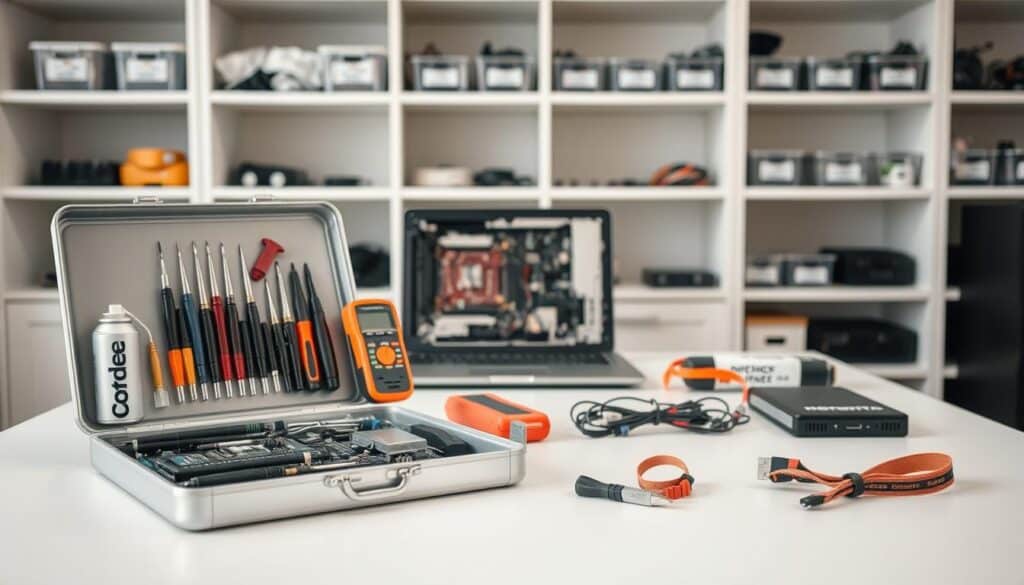
Start with a basic toolkit: Phillips and flathead screwdrivers, Torx bits for some laptops, magnetic tips, plastic pry tools, and an anti-static wrist strap. Cleaning supplies include microfiber cloths and 90%+ isopropyl alcohol for thermal paste cleanup. Keep thermal paste like Arctic MX-4 or Noctua NT-H1 on hand for reapplications.
For storage work, use external SSDs or USB drives for backups and a SATA-to-USB adapter for cloning. Rufus or bootable USB creators help with installations. Advanced items include a multimeter, ESD-safe tweezers, spudgers, and a thermal paste applicator for deeper repairs.
DIY vs. Professional Tools
Many routine tasks fit well within DIY maintenance. Software updates, disk cleanup, external cleaning, RAM or SATA SSD swaps, and simple diagnostics are safe with basic tools. Follow iFixit guides when available and check warranty before opening devices.
Some repairs need professional equipment and skills. Motherboard replacement, soldering, power supply fixes, and liquid damage cleanup require precision tools and hot air stations. These tools are often only in authorized repair centers.
Warranties from Apple Authorized Service Providers or manufacturers can be voided by home disassembly. So weigh risks carefully before proceeding. Using the right tools and clear repair techniques helps extend your device’s life. When unsure, choose a certified technician to avoid costly mistakes.
Cleaning Your Computer: A Step-by-Step Guide
Routine cleaning keeps devices reliable and extends their lifespan. This guide covers exterior care and safe interior cleaning. It also shares recommended products for maintenance.
Readers will find actionable laptop care tips and a simple PC checklist. The steps come from a trusted computer maintenance guide.
Dusting the Exterior
Power down the device and unplug all cables before you start. Use a lint-free microfiber cloth to wipe screens and the chassis. For keyboards, invert the laptop or keyboard and gently shake to remove loose debris.
Use a soft brush to clean between keys. Finish with short bursts of compressed air to clear tight spaces. For screens, apply a recommended cleaner or distilled water to the cloth, never spray directly.
Clean high-use machines weekly or biweekly. Increase cleaning near pets or in dusty areas.
Cleaning the Interior Components
Shut down and unplug the system. Remove the battery if your model allows it. Ground yourself with an anti-static strap before opening the device.
Always check the service manual for disassembly steps. This avoids voiding warranties. Use canned compressed air or an electric air duster in short bursts from a safe distance. Clean fans, vents, and heat sinks carefully.
Hold fan blades steady to prevent spinning. Avoid vacuum cleaners to reduce static risk. Gently clean RAM sticks, PCIe cards, and connectors.
For stubborn grime on metal contacts, use high-purity isopropyl alcohol and cotton swabs. Inspect CPU and GPU heat sinks regularly. When replacing thermal paste, remove the old paste with isopropyl alcohol.
Apply a pea-sized amount of quality thermal compound before reassembly. Check laptop batteries for swelling and follow manufacturer guidance for replacement. Keep ventilation clear and reassemble carefully.
Use the PC maintenance checklist to ensure all steps are done. This keeps your device running smoothly.
Recommended Cleaning Products
Choose reliable compressed air or an electric air duster like DataVac. This avoids propellant residue. Microfiber cloths, soft-bristled brushes, and 90%+ isopropyl alcohol are essential for safe cleaning.
Use screen-safe cleaners such as Whoosh! or certified LCD/LED wipes for displays. For thermal management, use approved pastes like Arctic Silver, Noctua NT-H1, or Thermal Grizzly. They work well for high-demand systems.
Follow safety tips carefully. Ensure good ventilation when using compressed air. Avoid liquids near circuitry unless specified. Handle batteries following manufacturer instructions.
These safety measures support long-term device health. They are part of a practical computer maintenance guide.
| Task | Frequency | Recommended Product | Notes |
|---|---|---|---|
| Exterior dusting (screen, chassis) | Weekly or biweekly | Microfiber cloth, distilled water, Whoosh! | Wipe gently; avoid ammonia cleaners on AR coatings |
| Keyboard cleaning | Weekly for heavy use | Soft brush, compressed air | Invert and shake before brushing; short air bursts |
| Interior dust removal | Every 3–12 months depending on environment | Electric air duster or canned air | Hold fans to prevent spinning; follow service manual |
| Thermal paste replacement | Every 2–4 years or when temperatures rise | Arctic Silver, Noctua NT-H1, Thermal Grizzly | Clean old paste with isopropyl alcohol; apply pea-sized amount |
| Battery inspection | Every 6 months | Manufacturer replacement parts | Look for swelling; follow manufacturer guidance for disposal |
Updating Your Operating System and Software
Keeping your operating system and apps current is key to reliable computer maintenance. Regular updates fix security holes and improve stability. They add new features that help devices work well with modern software.
Users who follow maintenance best practices lower the risk of malware. They also enjoy smoother performance on their computers.
Why updates matter
Security patches fix vulnerabilities that ransomware and other threats use. Following patch schedules helps users stay ahead of zero-day threats.
Stability gets better when developers fix bugs and update drivers. Peripheral and app compatibility depends on timely system and firmware updates.
Feature improvements help modernize workflows. Big updates from Microsoft and Apple add tools that speed up tasks and boost reliability.
How to set up automatic updates
On Windows, enable Windows Update and set active hours to avoid disruptive restarts. Let Microsoft Defender updates run automatically to keep protection current.
On macOS, turn on automatic updates in System Preferences > Software Update. Also enable App Store updates for third-party apps installed through Apple.
For Linux like Ubuntu, configure unattended-upgrades or use package tools to apply security and kernel patches automatically.
Enable auto-updates in browsers like Chrome and Firefox. Also do this for antivirus and productivity apps. Use official app stores to keep updates simple.
Let Windows Update handle most drivers. For key parts, download GPU and chipset drivers from NVIDIA, AMD, or Intel to get the latest fixes and boosts.
Tips for manual updates
Backup your system before major upgrades. Create a restore point on Windows or a full Time Machine backup on macOS to recover if needed.
Read release notes before updating. This helps spot compatibility issues with critical software and reduces downtime.
Download installers only from official vendor sites like Microsoft, Apple, Intel, and NVIDIA. This avoids counterfeit or tampered files.
Know how to roll back updates. Use Device Manager on Windows to roll back drivers. Use Time Machine on macOS to revert system changes if updates cause problems.
Follow Microsoft Patch Tuesday for routine Windows security patches. Also monitor vendor advisories for urgent fixes. These tips help keep systems healthy and reliable.
Managing Storage Space Effectively
Keeping storage tidy improves system responsiveness. It helps support long-term computer performance optimization. This brief guide shows how to manage space efficiently.
This guide helps identify space hogs, organize files, and pick external solutions. These solutions fit a PC maintenance checklist. Small, regular steps stop clutter from slowing workflows.
Start by spotting large files and unused programs. Use built-in tools like Windows Storage Settings or macOS About This Mac > Storage. These tools reveal what takes space.
Third-party utilities such as WinDirStat, TreeSize, and DaisyDisk provide clear visual maps. They help make quick, informed decisions on space management.
Common culprits include large video files, ISO images, games, and old backups. Duplicate files and bulky email archives often take space too. Sort folders by size and look for seldom-used apps like Adobe Creative Cloud components or legacy games.
Uninstall or archive items you no longer need. Organizing files reduces time wasted searching. It supports ongoing computer maintenance by keeping data accessible.
Adopt a simple folder hierarchy such as Documents, Media, Projects. Use consistent naming with dates in YYYY-MM-DD format for easier version control. Compress older material into ZIP or 7z files to save room.
Remove duplicate files with tools like DupeGuru or the duplicate finder in CCleaner. For active work, use Git to track changes on code and text projects. For mixed media, use selective sync with OneDrive, Google Drive, or Dropbox.
This lets you keep critical files local and offload the rest to the cloud. External drives are key for backups and active storage. Traditional external HDDs offer high capacity at low cost for archives.
External SSDs such as the Samsung T7 or SanDisk Extreme provide fast transfers. This is helpful for editing and active projects. Network Attached Storage from Synology or QNAP centralizes backups and streams media across household devices.
Cloud backup services like Backblaze, iDrive, and Microsoft OneDrive provide offsite redundancy. They also offer easy restore options. This approach fits well with a thorough computer maintenance guide.
For full system recovery, use cloning and imaging tools like Macrium Reflect or Acronis. Create disk images to maintain backups. Keep at least one local and one offsite copy.
Encrypt sensitive external drives with BitLocker on Windows or FileVault on macOS. This protects data during transport. Follow a simple PC maintenance checklist: identify large files monthly, archive or delete unnecessary ones, run duplicate scans quarterly, and verify backups regularly.
These habits boost reliability and make computer performance optimization part of routine care. Regular maintenance keeps your system running smoothly and efficiently.
Optimizing Your Computer’s Performance
This part of the computer maintenance guide shows practical steps for improving speed and responsiveness. The advice fits a home PC or a work laptop. It pairs well with a simple PC maintenance checklist to track each task.
Tips for Speeding Up Your PC
Reduce startup programs using Task Manager on Windows or Login Items on macOS. Disable apps that do not need to launch at boot. This lowers initial load and frees memory for active tasks.
Review background services and scheduled tasks. Stop nonessential services that consume CPU time. Keep GPU and chipset drivers updated from NVIDIA, AMD, or Intel.
Running updated drivers adds stability and boosts performance. Run regular scans with Malwarebytes and a reputable antivirus to remove malware and bloatware.
Consider adding more RAM, such as moving from 8GB to 16GB, but follow compatibility guidance from Crucial or Kingston. Set power plans to Balanced or High Performance for demanding work. Avoid battery saver mode during heavy use.
Document each change in a PC maintenance checklist to measure effects over time.
Importance of Disk Defragmentation
Mechanical HDDs benefit from periodic defragmentation. Use Windows Defragmenter to consolidate fragmented files and reduce read/write head travel. This can shorten load times for apps and files.
Do not defragment SSDs. Solid-state drives use TRIM support to manage blocks and keep steady performance. Excessive defragmentation can shorten SSD lifespan.
Rely on built-in TRIM functions handled by modern OS releases. Schedule defragmentation for HDDs monthly or when the drive shows high fragmentation. Back up important data before major maintenance tasks to prevent accidental loss.
Making Use of SSDs
Migrating the operating system to an SSD yields one of the fastest gains in perceived speed. Boot times, app launches, and responsiveness improve noticeably over HDDs.
Choose NVMe SSDs like Samsung 970 or 980 series for heavy workloads and content creation. Use SATA SSDs such as Samsung 860 for cost-effective general upgrades. Check for an M.2 slot or 2.5″ bay before buying.
Use cloning tools like Macrium Reflect or Samsung Data Migration to move the OS. Keep SSD firmware current with Samsung Magician or Crucial Storage Executive. Verify TRIM is enabled for long-term reliability.
| Task | Benefit | Suggested Tools/Brands |
|---|---|---|
| Disable startup apps | Faster boot, lower RAM use | Task Manager (Windows), Login Items (macOS) |
| Update drivers | Improved stability and GPU performance | NVIDIA GeForce Experience, AMD Radeon Software, Intel Driver & Support Assistant |
| Scan and remove malware | Freed resources, safer system | Malwarebytes, Windows Defender |
| Defragment HDDs | Reduced file access times | Windows Defragmenter |
| Enable TRIM and update SSD firmware | Consistent SSD performance, longer lifespan | Samsung Magician, Crucial Storage Executive |
| Upgrade to SSD | Faster boot and app loads | Samsung 970/980 (NVMe), Samsung 860 (SATA), Macrium Reflect |
Protecting Your Computer from Malware
Keeping a system safe requires clear steps and steady habits. This short guide fits into a larger computer maintenance guide. It gives practical defenses against malware for users.
Readers will find antivirus options, safe browsing habits, and ways to spot phishing attempts. These tips support broader computer maintenance best practices. They also pair well with computer troubleshooting tips when problems arise.
Best Antivirus Software Options
Pick a vendor that offers real-time protection with a small impact on system performance. Windows Defender is built into Windows. It covers many users well.
Bitdefender, Norton, Kaspersky, and ESET score highly on independent lab tests from AV-TEST and AV-Comparatives. Use Malwarebytes for on-demand scanning and cleanup.
Look for frequent signature updates, ransomware shields, and phishing filters in your antivirus. Keep subscriptions current. Avoid running two real-time antivirus engines at once.
Check lab results regularly before renewing a license. This helps match protection to your system’s needs.
Safe Browsing Practices
Keep Chrome, Firefox, or Microsoft Edge updated to close security holes. Disable unnecessary extensions. Check site permissions often to stay safe.
Prefer HTTPS pages and heed certificate warnings instead of bypassing them. Download software only from official vendor sites or trusted stores. Always scan new files before opening.
Use separate browser profiles for work and personal use. Consider using a non-admin account for daily tasks. Block intrusive ads with uBlock Origin or built-in tracking protection.
Understanding Phishing Attacks
Phishing uses deceptive emails, messages, or sites to steal credentials or install malware. Common red flags include generic greetings, mismatched URLs, and urgent language.
Also watch for unexpected attachments and requests for payments or login details. Hover over links to preview destinations and check sender addresses independently.
Contact organizations through official channels if a message seems suspicious. Report phishing to providers like Gmail or Outlook. Inform appropriate authorities when needed.
Add email filtering and domain protections such as DMARC, DKIM, and SPF for hosted domains if possible. Two-factor authentication helps limit account takeover even if credentials leak.
These measures complement the larger computer maintenance guide. They strengthen everyday computer maintenance best practices and provide useful troubleshooting tips during incidents.
Backing Up Your Data Regularly
A reliable backup plan is a key part of any computer maintenance guide. It protects photos, documents, and system settings from drive failure, theft, or malware.
A clear strategy helps users follow a PC maintenance checklist. It teaches practical ways to keep your computer running smoothly.
Different methods suit different needs. Local backups use external hard drives, SSDs, or a NAS for fast restores.
Macrium Reflect and Acronis create full system images for complete recovery. Cloud backups like Backblaze, iDrive, Carbonite, or OneDrive offer offsite protection and file versioning.
A hybrid approach follows the 3-2-1 rule: three copies, two media types, and one offsite backup.
File-level backups save space and target documents and media. Image backups capture the operating system and installed software for quick recovery after failure.
Users should weigh convenience against storage needs when choosing between file-level and image backups.
Create a backup schedule that fits your usage. Critical work files need daily or continuous backups, while personal use works with weekly backups.
Monthly full system images add extra protection. Enable automation in backup software, and run test restores to check data integrity.
Retention policies are important. Keep several versions and incremental backups to recover from accidental deletion or ransomware.
Label external drives by date and rotate them offsite regularly. This clear labeling makes audits easier and improves your PC maintenance checklist.
Recovering lost data starts by stopping use of the affected drive to avoid overwrites. Identify if the problem is logical or physical.
Logical losses, like deleted files, can be recovered using tools like Recuva, PhotoRec, and EaseUS Data Recovery Wizard. Bootable recovery environments help if the OS won’t start.
Mechanical failures require professional help. Companies like DriveSavers and Ontrack offer data recovery, though costs and success vary.
For ransomware attacks, isolate infected machines and report the breach. Restore from trusted backups instead of paying a ransom.
Security professionals can assist with containment and recovery steps to protect your data and system.
Keeping Your Computer Secure
Keeping a computer safe is a key part of any computer maintenance guide. Small changes to passwords, authentication, and network settings cut risk for personal and work data.
The following practical steps fit into computer maintenance best practices. They also pair well with common computer troubleshooting tips.
Importance of Strong Passwords
Long, unique passwords reduce the chance of account takeover. Aim for 12 or more characters or use a passphrase that mixes words, numbers, and symbols.
Avoid reusing the same credential across email, banking, and cloud accounts.
Password managers simplify secure storage and autofill. Services such as LastPass, 1Password, Bitwarden, and Apple iCloud Keychain encrypt credentials and generate strong passwords.
Use a robust master password and enable account recovery options where available.
Change default passwords on routers and IoT devices the moment they are set up. Disable or remove unused accounts.
Check login histories periodically to spot odd activity.
Enabling Two-Factor Authentication
Two-factor authentication adds a required second step after a password. Authenticator apps like Google Authenticator and Authy offer strong, time-based codes.
Hardware security keys such as YubiKey provide an extra layer of protection for sensitive accounts.
Enable 2FA on email, financial services, cloud storage, and social media to reduce the impact of a leaked password.
Keep backup codes stored in a secure place. Set up authenticator app backups on a second device when possible.
SMS can be used as a fallback, but it is less secure than app-based or hardware methods. Plan account recovery before it is needed to avoid lockouts.
Secure Your Wi-Fi Network
Change router admin credentials away from factory defaults. Turn on WPA3 if the router and devices support it.
If not, use WPA2 with AES encryption and disable WPS to close a common attack vector.
Create a guest network for visitors and a separate SSID for IoT devices. This keeps cameras and smart speakers off the main network.
Use a long, unique passphrase for each network. Avoid simple SSIDs that reveal device types or owner names.
Keep router firmware current by checking updates from vendors such as Netgear, Asus, and TP-Link. Enable built-in firewall features.
Review connected devices using the router’s management interface. When on public Wi-Fi, use a trusted VPN to protect data in transit.
| Area | Recommended Action | Tools or Brands |
|---|---|---|
| Passwords | Use long, unique passwords and a password manager | LastPass, 1Password, Bitwarden, iCloud Keychain |
| Two-Factor Authentication | Enable 2FA for critical accounts; store backup codes securely | Google Authenticator, Authy, YubiKey |
| Router Security | Change defaults, enable WPA3/WPA2-AES, disable WPS, update firmware | Netgear, Asus, TP-Link routers |
| Network Segmentation | Use guest networks and separate IoT SSIDs to isolate devices | Built-in router features, mesh systems from Eero or Google Nest |
| Monitoring & Backup | Track connected devices and keep backup methods for recovery | Router management apps, authenticator multi-device backup |
Troubleshooting Common Computer Issues
This section helps readers use practical computer troubleshooting tips from a maintenance guide. It starts with spotting hardware problems. Then, it covers common software fixes. Finally, it guides when to seek professional repair help.
Identifying Hardware Problems
Unexpected shutdowns, loud fans, blue screens, failure to boot, strange hard drive noises, and swollen laptop batteries show hardware issues.
Start by checking power and cable connections before moving on.
Run manufacturer diagnostics like Dell Diagnostics or Lenovo Diagnostics.
Use CrystalDiskInfo to read SMART data for drives.
Test memory with MemTest86 to find faulty RAM.
Isolate components by booting with minimal hardware setup.
Swap a known-good PSU or RAM stick to find the faulty part.
Monitor CPU and GPU temperatures with HWMonitor or Core Temp to detect overheating or cooling system failure.
Software Issues and Fixes
Slow boot, app crashes, driver conflicts, failed OS updates, and malware infections often cause performance problems.
Boot into Safe Mode to limit running services and apps for troubleshooting.
Run SFC and DISM on Windows to repair system files.
Check Event Viewer for error logs pointing to drivers or services.
Reinstall or update drivers from manufacturer sites when conflicts appear.
Rolling back a driver in Device Manager can restore stability after a bad update.
If corruption persists, use Windows Recovery Environment or macOS Recovery to repair system files or reinstall the OS while keeping user data.
Restore from a recent backup or system restore point if an update causes instability.
When to Seek Professional Help
Seek professional service for physical damage, liquid spills, or complex motherboard and soldered-component repairs.
Failed SSDs or HDDs making mechanical noise with critical data need specialist help to avoid further loss.
Choose authorized service centers like Apple Authorized Service Provider or OEM centers for warranty repairs.
For out-of-warranty work, select reputable local technicians with clear pricing and strong data privacy.
| Issue | First Steps | When to Seek Pros |
|---|---|---|
| Unexpected shutdowns | Check power, run diagnostics, monitor temps | Persistent shutdowns after testing; possible PSU or motherboard fault |
| Blue Screen (BSOD) | Note error code, run SFC/DISM, test RAM with MemTest86 | Repeated BSODs tied to hardware on diagnostics |
| No boot | Verify cables, test with minimal hardware, try known-good drive | Failed motherboard or soldered component; professional board-level repair |
| Strange HDD noises | Check SMART via CrystalDiskInfo, stop using drive, backup if possible | Mechanical noise with critical data; use professional data recovery |
| Slow performance | Boot Safe Mode, remove startup apps, scan for malware | After software fixes fail, consider hardware upgrades or professional tune-up |
| Failed OS update | Use recovery options, roll back update, restore from backup | Update corrupts drive or prevents recovery; professional intervention advised |
Creating a Maintenance Schedule
Keeping a clear routine helps you follow a PC maintenance checklist. It also keeps devices healthy. A simple schedule breaks tasks into daily, weekly, monthly, quarterly, and yearly groups.
This structure fits well into a computer maintenance guide. It helps users find practical ways to keep your computer running smoothly.
Frequency of Tasks
Daily tasks include verifying backups, closing unused apps, and scanning for odd behavior. Weekly jobs cover quick malware scans, clearing browser caches, dusting externals, and confirming system updates.
Monthly, do a full antivirus scan, disk cleanup, review large files, check drivers, and clean the keyboard and vents. Quarterly, open the case to remove dust, test backup integrity, run hardware diagnostics, and update router firmware.
Yearly, deep-clean internals, consider replacing thermal paste, evaluate RAM or SSD upgrades, and review backup and security strategies.
Using Checklists for Tracking
Create a checklist with columns for task, frequency, last performed, notes, and next due date. Use tools like Todoist, Microsoft To Do, or printable sheets to log actions.
Record OS updates, antivirus scans, disk cleanups, backups, physical cleaning, password reviews, and driver checks to maintain accountability and build history.
Tips for Sticking to Your Schedule
Automate routine jobs like updates, backups, and scans to reduce manual effort. Tie tasks to calendar reminders or pair them with monthly chores for consistency.
In homes or small offices, assign responsibility or centralize maintenance on one managed machine. Treat upkeep like car care: small, regular actions prevent big failures.
Review the plan yearly and adapt it based on your device use and environment.